Set Guest Mode Access
Admins can limit access to the portal for either paid and non-paid member users
This article will inform how Admins can limit access to the portal for either paid and non-paid member users
Individual Guest Mode Settings
When activated, Guest Mode limits individual user access within the portal. To set, follow these steps:
Browse to the User Profile you wish to activate Guest Mode and select Edit
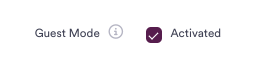
Under the Account accordion, select Activated for Guest Mode.
Users with Guest Mode access activated will now have a yellow icon in the lower left of their avatar.

Global Guest Mode Settings
Admins have global controls for Guest Mode, making it easy to automate the management of their new registered and paid/non-paid membership access levels.
To enable automatic Guest Mode for all new user registrations, follow these steps:
Visit Settings > Configure and expand the Instance Settings accordion.
Select Set Registrant in Guest Mode

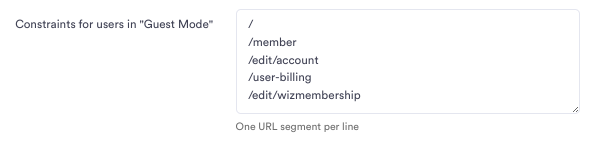
To constrain what URLS a Guest Mode member can access, follow these steps:
Visit Settings > Configure and expand the Instance Settings accordion.
Enter in URLs for Guest Mode Constraints.
To automate Guest Mode activation based on the user's membership status, follow these steps:
Visit Settings > Configure and expand the Instance Settings accordion.
Toggle Automate Guest Mode to the On position.

Did this answer your question?
If not, tell us what you were trying to do.